> ## Documentation Index
> Fetch the complete documentation index at: https://docs-staging-privilege-worker-scope-pinning.mintlify.site/llms.txt
> Use this file to discover all available pages before exploring further.

> Learn how to configure an update policy form using Forms for Actions for users to review and accept new terms of service or consent updates.

# Use Cases: Configure an update policy form using Forms

<Card title="Before you start">
  1. Create a [Machine-to-Machine Application](/docs/get-started/auth0-overview/create-applications/machine-to-machine-apps) with the following scopes enabled:

  * `read:users`
  * `update:users`
  * `create:users`
  * `read:users_app_metadata`
  * `update:users_app_metadata`
  * `create:users_app_metadata`

  2. Add a [Vault connection](/docs/customize/forms/vault) using the M2M application credentials.
</Card>

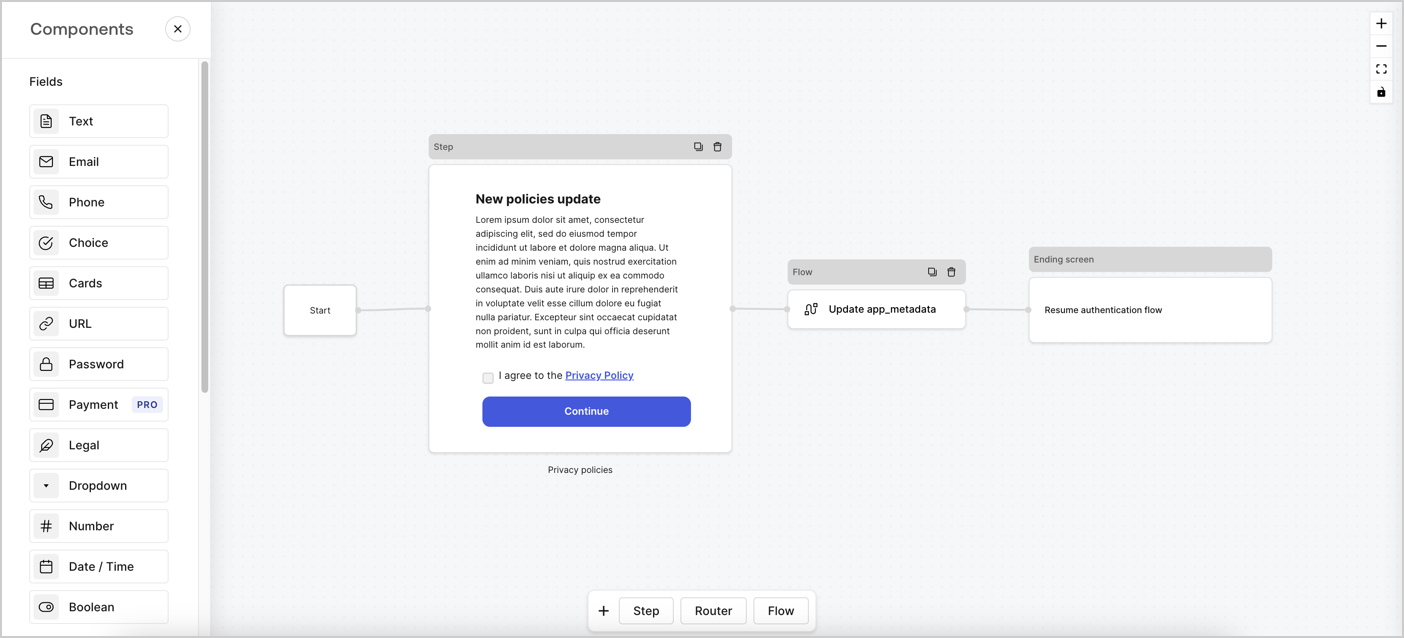
Forms for Actions allows you to create custom privacy policies flows and store the consent under the `app_metadata` object.
<Frame>
  <img src="https://mintcdn.com/docs-staging-privilege-worker-scope-pinning/CFxn1qbDITEzU78s/docs/images/cdy7uua7fh8z/6i68dMvHDTijfRmSgN1x8Q/ad900e7d4c0fb34645921435472b8684/privavy-policy-form.png?fit=max&auto=format&n=CFxn1qbDITEzU78s&q=85&s=6dcaab979e314a3fc38fb5b4bacd63ab" alt="Dashboard > Actions > Forms > Privacy policy use case" data-og-width="1404" width="1404" data-og-height="638" height="638" data-path="docs/images/cdy7uua7fh8z/6i68dMvHDTijfRmSgN1x8Q/ad900e7d4c0fb34645921435472b8684/privavy-policy-form.png" data-optimize="true" data-opv="3" srcset="https://mintcdn.com/docs-staging-privilege-worker-scope-pinning/CFxn1qbDITEzU78s/docs/images/cdy7uua7fh8z/6i68dMvHDTijfRmSgN1x8Q/ad900e7d4c0fb34645921435472b8684/privavy-policy-form.png?w=280&fit=max&auto=format&n=CFxn1qbDITEzU78s&q=85&s=67275ffc4935244a963a029f8b79169b 280w, https://mintcdn.com/docs-staging-privilege-worker-scope-pinning/CFxn1qbDITEzU78s/docs/images/cdy7uua7fh8z/6i68dMvHDTijfRmSgN1x8Q/ad900e7d4c0fb34645921435472b8684/privavy-policy-form.png?w=560&fit=max&auto=format&n=CFxn1qbDITEzU78s&q=85&s=570a00aa7e8228c05255c459549b4a00 560w, https://mintcdn.com/docs-staging-privilege-worker-scope-pinning/CFxn1qbDITEzU78s/docs/images/cdy7uua7fh8z/6i68dMvHDTijfRmSgN1x8Q/ad900e7d4c0fb34645921435472b8684/privavy-policy-form.png?w=840&fit=max&auto=format&n=CFxn1qbDITEzU78s&q=85&s=c5e78296537d25fc0f10ab8d6f46216f 840w, https://mintcdn.com/docs-staging-privilege-worker-scope-pinning/CFxn1qbDITEzU78s/docs/images/cdy7uua7fh8z/6i68dMvHDTijfRmSgN1x8Q/ad900e7d4c0fb34645921435472b8684/privavy-policy-form.png?w=1100&fit=max&auto=format&n=CFxn1qbDITEzU78s&q=85&s=af2c129b8bcd354b92ecfd631fbf8293 1100w, https://mintcdn.com/docs-staging-privilege-worker-scope-pinning/CFxn1qbDITEzU78s/docs/images/cdy7uua7fh8z/6i68dMvHDTijfRmSgN1x8Q/ad900e7d4c0fb34645921435472b8684/privavy-policy-form.png?w=1650&fit=max&auto=format&n=CFxn1qbDITEzU78s&q=85&s=10af6c933e4db2c790891159ce307882 1650w, https://mintcdn.com/docs-staging-privilege-worker-scope-pinning/CFxn1qbDITEzU78s/docs/images/cdy7uua7fh8z/6i68dMvHDTijfRmSgN1x8Q/ad900e7d4c0fb34645921435472b8684/privavy-policy-form.png?w=2500&fit=max&auto=format&n=CFxn1qbDITEzU78s&q=85&s=94c37fd4cd17e48a6ea2f88e8d0b29ec 2500w" />
</Frame>

The sections below outline how you can create an Update Policy form using nodes and flows, along with steps for adding your form to a [Post Login](/docs/customize/actions/explore-triggers/signup-and-login-triggers/login-trigger) Action.

## Create a form from scratch

Follow these steps to create a form to gather information:

1. Open the Form editor by selecting **Auth0 Dashboard > Actions > Forms.**
2. Select **Create Form** > **Start from scratch**.

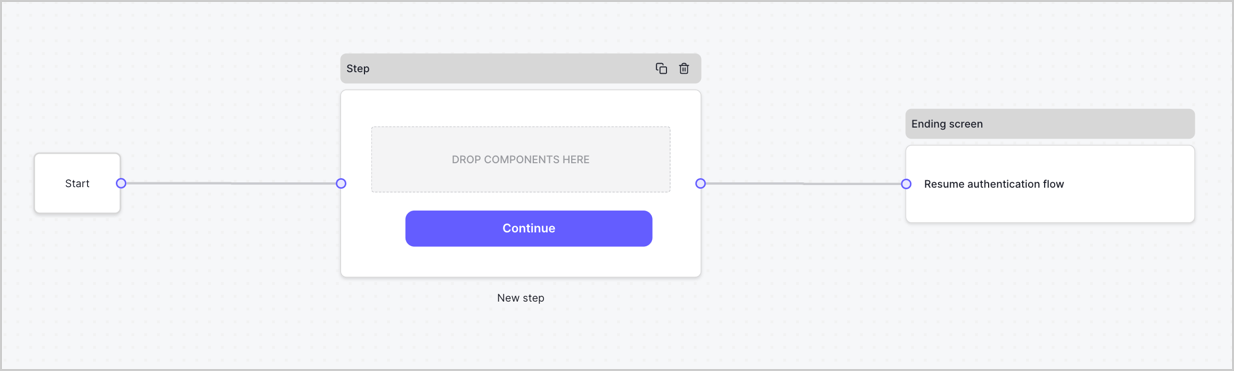
By default, a new form contains a Start node, a Step node, and an Ending screen node.
<Frame>
  <img src="https://mintcdn.com/docs-staging-privilege-worker-scope-pinning/Hmq7ldyOot2wV44X/docs/images/cdy7uua7fh8z/2TZ9jSjgEcARFpULI6hz4R/a4319a1bd482f2ee5cc23100fdb2f42c/New-form-Forms-for-action-use-case.png?fit=max&auto=format&n=Hmq7ldyOot2wV44X&q=85&s=e75c5a4f2361947f3b7016121ac3057e" alt="Dashboard > Forms > Use Cases > Form" data-og-width="1234" width="1234" data-og-height="371" height="371" data-path="docs/images/cdy7uua7fh8z/2TZ9jSjgEcARFpULI6hz4R/a4319a1bd482f2ee5cc23100fdb2f42c/New-form-Forms-for-action-use-case.png" data-optimize="true" data-opv="3" srcset="https://mintcdn.com/docs-staging-privilege-worker-scope-pinning/Hmq7ldyOot2wV44X/docs/images/cdy7uua7fh8z/2TZ9jSjgEcARFpULI6hz4R/a4319a1bd482f2ee5cc23100fdb2f42c/New-form-Forms-for-action-use-case.png?w=280&fit=max&auto=format&n=Hmq7ldyOot2wV44X&q=85&s=2c65799a4ff4cfd6d56e470dd890299a 280w, https://mintcdn.com/docs-staging-privilege-worker-scope-pinning/Hmq7ldyOot2wV44X/docs/images/cdy7uua7fh8z/2TZ9jSjgEcARFpULI6hz4R/a4319a1bd482f2ee5cc23100fdb2f42c/New-form-Forms-for-action-use-case.png?w=560&fit=max&auto=format&n=Hmq7ldyOot2wV44X&q=85&s=7e38c792f6a09f38129e8eb07bfe8b0e 560w, https://mintcdn.com/docs-staging-privilege-worker-scope-pinning/Hmq7ldyOot2wV44X/docs/images/cdy7uua7fh8z/2TZ9jSjgEcARFpULI6hz4R/a4319a1bd482f2ee5cc23100fdb2f42c/New-form-Forms-for-action-use-case.png?w=840&fit=max&auto=format&n=Hmq7ldyOot2wV44X&q=85&s=a4a4385fabdd4d8d01d57c2c39bb5d8e 840w, https://mintcdn.com/docs-staging-privilege-worker-scope-pinning/Hmq7ldyOot2wV44X/docs/images/cdy7uua7fh8z/2TZ9jSjgEcARFpULI6hz4R/a4319a1bd482f2ee5cc23100fdb2f42c/New-form-Forms-for-action-use-case.png?w=1100&fit=max&auto=format&n=Hmq7ldyOot2wV44X&q=85&s=9e871bbd0d5f7bf3846f2f53474c6ea7 1100w, https://mintcdn.com/docs-staging-privilege-worker-scope-pinning/Hmq7ldyOot2wV44X/docs/images/cdy7uua7fh8z/2TZ9jSjgEcARFpULI6hz4R/a4319a1bd482f2ee5cc23100fdb2f42c/New-form-Forms-for-action-use-case.png?w=1650&fit=max&auto=format&n=Hmq7ldyOot2wV44X&q=85&s=486a47b494db89fd6006d73314614cf5 1650w, https://mintcdn.com/docs-staging-privilege-worker-scope-pinning/Hmq7ldyOot2wV44X/docs/images/cdy7uua7fh8z/2TZ9jSjgEcARFpULI6hz4R/a4319a1bd482f2ee5cc23100fdb2f42c/New-form-Forms-for-action-use-case.png?w=2500&fit=max&auto=format&n=Hmq7ldyOot2wV44X&q=85&s=920b6182804ae3a83e6f1d3397644b64 2500w" />
</Frame>

### Configure the Step node

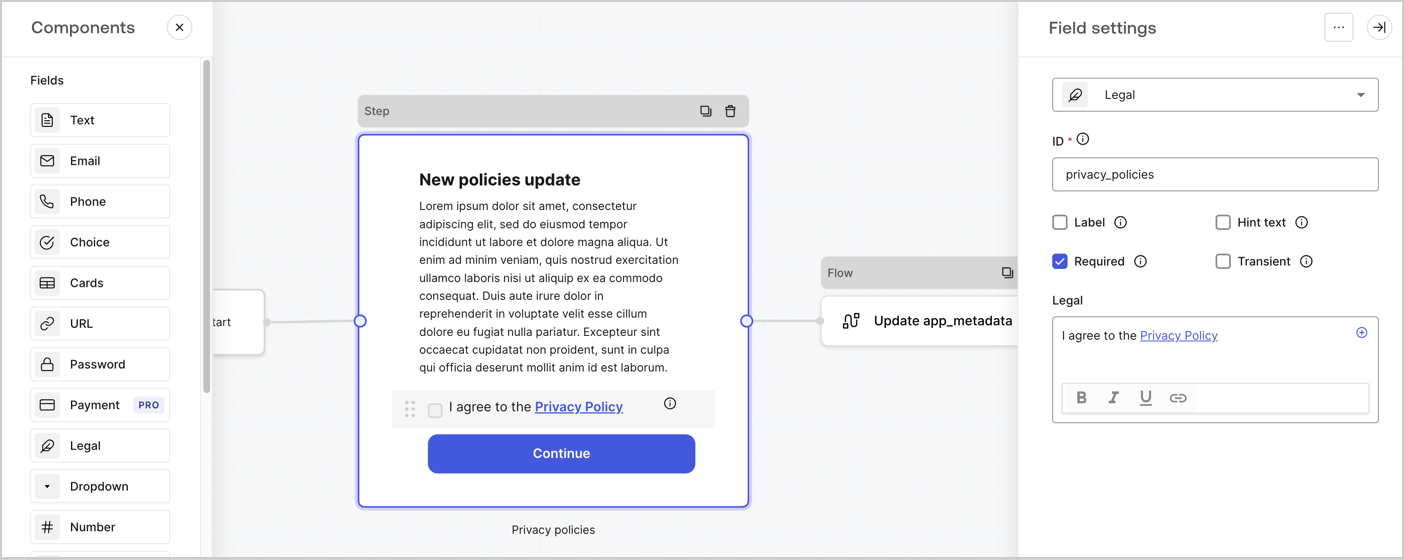
The Step node is the graphical interface visible to users. Add [Fields](/docs/customize/forms/nodes-and-components) to the Step node to collect the new agreement acceptance value by following these steps:

1. Drag a **Rich text** field from the **Components menu** into the **Step** node.

   * **Rich text**: Enter a description of your privacy policies updates.
   * Select **Save**.
2. Drag a **Legal** field into the **Step** node.

   * **ID**: Enter `privacy_policies`.
   * **Required**: Enable the checkbox.
   * **Legal**: Enter `I agree to the Privacy Policy`.
   * Select **Save**.
3. Select **Publish** to save.
<Frame>
  <img src="https://mintcdn.com/docs-staging-privilege-worker-scope-pinning/CAaV660U0wFdIcJT/docs/images/cdy7uua7fh8z/59zFFjQjAnjogkc2QGIqqJ/0ad66b1b636544122aa4e65968b76c2c/privacy-policy-step-node.png?fit=max&auto=format&n=CAaV660U0wFdIcJT&q=85&s=6df2c183b3cde5c551ddf921074e8ba1" alt="Dashboard > Actions > Forms > Use case privacy policy step node" data-og-width="1404" width="1404" data-og-height="559" height="559" data-path="docs/images/cdy7uua7fh8z/59zFFjQjAnjogkc2QGIqqJ/0ad66b1b636544122aa4e65968b76c2c/privacy-policy-step-node.png" data-optimize="true" data-opv="3" srcset="https://mintcdn.com/docs-staging-privilege-worker-scope-pinning/CAaV660U0wFdIcJT/docs/images/cdy7uua7fh8z/59zFFjQjAnjogkc2QGIqqJ/0ad66b1b636544122aa4e65968b76c2c/privacy-policy-step-node.png?w=280&fit=max&auto=format&n=CAaV660U0wFdIcJT&q=85&s=9f611791be87329470f144d5a9e062c3 280w, https://mintcdn.com/docs-staging-privilege-worker-scope-pinning/CAaV660U0wFdIcJT/docs/images/cdy7uua7fh8z/59zFFjQjAnjogkc2QGIqqJ/0ad66b1b636544122aa4e65968b76c2c/privacy-policy-step-node.png?w=560&fit=max&auto=format&n=CAaV660U0wFdIcJT&q=85&s=b2baa037d932adad952aed7099dfceaa 560w, https://mintcdn.com/docs-staging-privilege-worker-scope-pinning/CAaV660U0wFdIcJT/docs/images/cdy7uua7fh8z/59zFFjQjAnjogkc2QGIqqJ/0ad66b1b636544122aa4e65968b76c2c/privacy-policy-step-node.png?w=840&fit=max&auto=format&n=CAaV660U0wFdIcJT&q=85&s=f289fe45d72cb59d99579377f43142e9 840w, https://mintcdn.com/docs-staging-privilege-worker-scope-pinning/CAaV660U0wFdIcJT/docs/images/cdy7uua7fh8z/59zFFjQjAnjogkc2QGIqqJ/0ad66b1b636544122aa4e65968b76c2c/privacy-policy-step-node.png?w=1100&fit=max&auto=format&n=CAaV660U0wFdIcJT&q=85&s=fba97a7043000098b1409b265a1d23cd 1100w, https://mintcdn.com/docs-staging-privilege-worker-scope-pinning/CAaV660U0wFdIcJT/docs/images/cdy7uua7fh8z/59zFFjQjAnjogkc2QGIqqJ/0ad66b1b636544122aa4e65968b76c2c/privacy-policy-step-node.png?w=1650&fit=max&auto=format&n=CAaV660U0wFdIcJT&q=85&s=cfa25f0558d215faa03fee46ace01910 1650w, https://mintcdn.com/docs-staging-privilege-worker-scope-pinning/CAaV660U0wFdIcJT/docs/images/cdy7uua7fh8z/59zFFjQjAnjogkc2QGIqqJ/0ad66b1b636544122aa4e65968b76c2c/privacy-policy-step-node.png?w=2500&fit=max&auto=format&n=CAaV660U0wFdIcJT&q=85&s=9f49fae18f7d6486f2838d012423ddeb 2500w" />
</Frame>

### Configure the Flow node

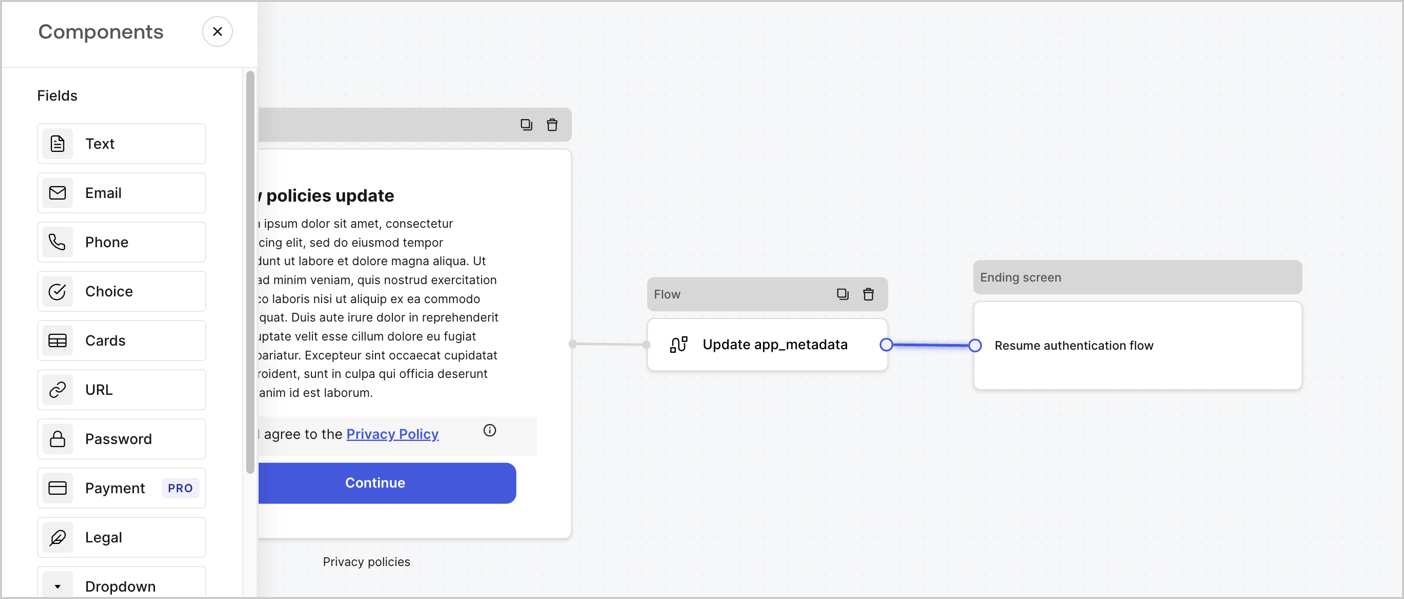
Add a **Flow** node after the **Step** node to update the `app_metadata` and resume the authentication flow by following these steps:

1. Select **Flow** from the bottom of the Form editor.
2. Remove the existing link between the **Step** and **Ending Screen** nodes.
3. Select the new **Flow** > **Click to add a flow** > **Create a new flow.**

   * Enter `Update app_metadata` in the **Name** field.
   * Select **Create**.
   * Select **Save**.
4. Link the **Flow** node to the **Step** and **Ending Screen** nodes as pictured below.
5. Select **Publish** to save.
<Frame>
  <img src="https://mintcdn.com/docs-staging-privilege-worker-scope-pinning/CFxn1qbDITEzU78s/docs/images/cdy7uua7fh8z/6YIkzm7SrpM9LW76AXuRzh/353c518fe82bbaa440836da1d83596d6/link-policies.png?fit=max&auto=format&n=CFxn1qbDITEzU78s&q=85&s=f7480183a834ef071d7a7137f247ac78" alt="Dashboard > Actions > Forms > Form" data-og-width="1404" width="1404" data-og-height="599" height="599" data-path="docs/images/cdy7uua7fh8z/6YIkzm7SrpM9LW76AXuRzh/353c518fe82bbaa440836da1d83596d6/link-policies.png" data-optimize="true" data-opv="3" srcset="https://mintcdn.com/docs-staging-privilege-worker-scope-pinning/CFxn1qbDITEzU78s/docs/images/cdy7uua7fh8z/6YIkzm7SrpM9LW76AXuRzh/353c518fe82bbaa440836da1d83596d6/link-policies.png?w=280&fit=max&auto=format&n=CFxn1qbDITEzU78s&q=85&s=5da0468e8dc0b4b39e685b93f0b03797 280w, https://mintcdn.com/docs-staging-privilege-worker-scope-pinning/CFxn1qbDITEzU78s/docs/images/cdy7uua7fh8z/6YIkzm7SrpM9LW76AXuRzh/353c518fe82bbaa440836da1d83596d6/link-policies.png?w=560&fit=max&auto=format&n=CFxn1qbDITEzU78s&q=85&s=732299823066f79ab09fe21ae827408d 560w, https://mintcdn.com/docs-staging-privilege-worker-scope-pinning/CFxn1qbDITEzU78s/docs/images/cdy7uua7fh8z/6YIkzm7SrpM9LW76AXuRzh/353c518fe82bbaa440836da1d83596d6/link-policies.png?w=840&fit=max&auto=format&n=CFxn1qbDITEzU78s&q=85&s=c066de09858d43a55bf598f42c2d59bf 840w, https://mintcdn.com/docs-staging-privilege-worker-scope-pinning/CFxn1qbDITEzU78s/docs/images/cdy7uua7fh8z/6YIkzm7SrpM9LW76AXuRzh/353c518fe82bbaa440836da1d83596d6/link-policies.png?w=1100&fit=max&auto=format&n=CFxn1qbDITEzU78s&q=85&s=deeaecad915b4035df3c7e478cdacfe4 1100w, https://mintcdn.com/docs-staging-privilege-worker-scope-pinning/CFxn1qbDITEzU78s/docs/images/cdy7uua7fh8z/6YIkzm7SrpM9LW76AXuRzh/353c518fe82bbaa440836da1d83596d6/link-policies.png?w=1650&fit=max&auto=format&n=CFxn1qbDITEzU78s&q=85&s=2a47624d124a13373ec6eb4f70bcef5e 1650w, https://mintcdn.com/docs-staging-privilege-worker-scope-pinning/CFxn1qbDITEzU78s/docs/images/cdy7uua7fh8z/6YIkzm7SrpM9LW76AXuRzh/353c518fe82bbaa440836da1d83596d6/link-policies.png?w=2500&fit=max&auto=format&n=CFxn1qbDITEzU78s&q=85&s=dbc735437b90e2beb3b83c70576a1cc1 2500w" />
</Frame>

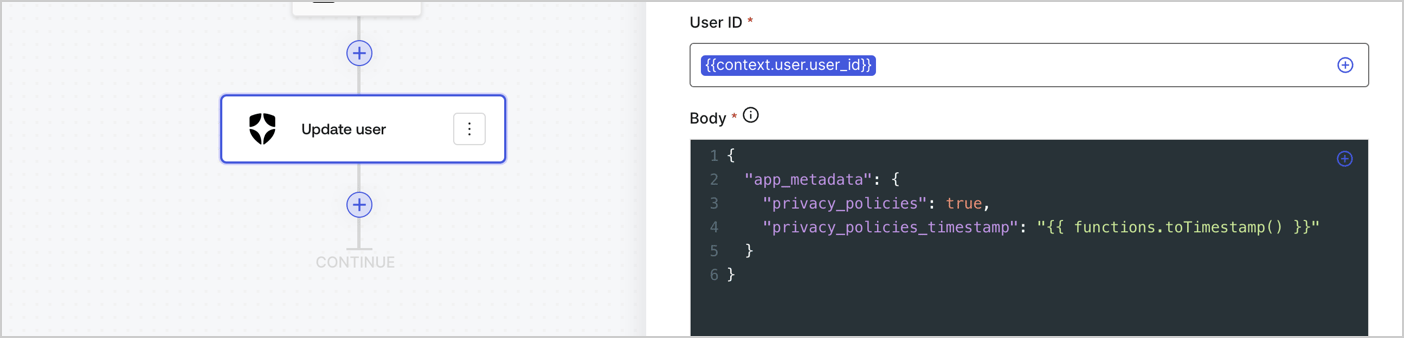
Add an Auth0 Update user action to the flow by following these steps:

1. Select the **Flow** **Update app\_metadata** > **Edit flow** to open the Flow editor in a new tab.
2. Below the StartAction, select the **+** icon to add an **Update user** action. Complete the fields below, then select **Save** to continue.

   * **Connection**: Select from the dropdown the Vault connection to your M2M application.

   * **User ID**: Enter `{{context.user.user_id}}`.

   * **Body**: Copy and paste the following code to update the app\_metadata with the privacy\_policies and privacy\_policies\_timestamp properties.

     ```text lines theme={null}
     {
       "app_metadata": {
         "privacy_policies": true,
         "privacy_policies_timestamp": "{{ functions.toTimestamp() }}"
       }
     }
     ```

   * Select **Save**.
3. Select **Publish** to save.
<Frame>
  <img src="https://mintcdn.com/docs-staging-privilege-worker-scope-pinning/xMR_IGDepOuHliIm/docs/images/cdy7uua7fh8z/CvMNIwWrOUwaFW4X3G28p/1fb70ae57a20749d9ffaaba8dc0b7e26/update-user-privacy.png?fit=max&auto=format&n=xMR_IGDepOuHliIm&q=85&s=378c02b142b5808bac67724d64a2a1b9" alt="Dashboard > Actions > Forms > User case privacy policy code" data-og-width="1404" width="1404" data-og-height="338" height="338" data-path="docs/images/cdy7uua7fh8z/CvMNIwWrOUwaFW4X3G28p/1fb70ae57a20749d9ffaaba8dc0b7e26/update-user-privacy.png" data-optimize="true" data-opv="3" srcset="https://mintcdn.com/docs-staging-privilege-worker-scope-pinning/xMR_IGDepOuHliIm/docs/images/cdy7uua7fh8z/CvMNIwWrOUwaFW4X3G28p/1fb70ae57a20749d9ffaaba8dc0b7e26/update-user-privacy.png?w=280&fit=max&auto=format&n=xMR_IGDepOuHliIm&q=85&s=02f8f7dea578a93563ec3dd75e2d5c12 280w, https://mintcdn.com/docs-staging-privilege-worker-scope-pinning/xMR_IGDepOuHliIm/docs/images/cdy7uua7fh8z/CvMNIwWrOUwaFW4X3G28p/1fb70ae57a20749d9ffaaba8dc0b7e26/update-user-privacy.png?w=560&fit=max&auto=format&n=xMR_IGDepOuHliIm&q=85&s=d66d7d2864cbb1a39532c3f41fcef1fa 560w, https://mintcdn.com/docs-staging-privilege-worker-scope-pinning/xMR_IGDepOuHliIm/docs/images/cdy7uua7fh8z/CvMNIwWrOUwaFW4X3G28p/1fb70ae57a20749d9ffaaba8dc0b7e26/update-user-privacy.png?w=840&fit=max&auto=format&n=xMR_IGDepOuHliIm&q=85&s=32a20b21abc5f22886d3152655071cf1 840w, https://mintcdn.com/docs-staging-privilege-worker-scope-pinning/xMR_IGDepOuHliIm/docs/images/cdy7uua7fh8z/CvMNIwWrOUwaFW4X3G28p/1fb70ae57a20749d9ffaaba8dc0b7e26/update-user-privacy.png?w=1100&fit=max&auto=format&n=xMR_IGDepOuHliIm&q=85&s=67cdf7a46c5dc9d234ab89ff93d5ac54 1100w, https://mintcdn.com/docs-staging-privilege-worker-scope-pinning/xMR_IGDepOuHliIm/docs/images/cdy7uua7fh8z/CvMNIwWrOUwaFW4X3G28p/1fb70ae57a20749d9ffaaba8dc0b7e26/update-user-privacy.png?w=1650&fit=max&auto=format&n=xMR_IGDepOuHliIm&q=85&s=00f636bb7078b59ecd8fc06a9ae78f6e 1650w, https://mintcdn.com/docs-staging-privilege-worker-scope-pinning/xMR_IGDepOuHliIm/docs/images/cdy7uua7fh8z/CvMNIwWrOUwaFW4X3G28p/1fb70ae57a20749d9ffaaba8dc0b7e26/update-user-privacy.png?w=2500&fit=max&auto=format&n=xMR_IGDepOuHliIm&q=85&s=4646e0ace1d7ab12901bd671fd66fbb7 2500w" />
</Frame>

<Callout icon="file-lines" color="#0EA5E9" iconType="regular">
  The flow **Update app\_metadata** adds a `privacy_policies true` value to the app`_metadata` object and also generates a timestamp with a [helper function.](/docs/customize/forms/variables)
</Callout>

## Retrieve the form render code

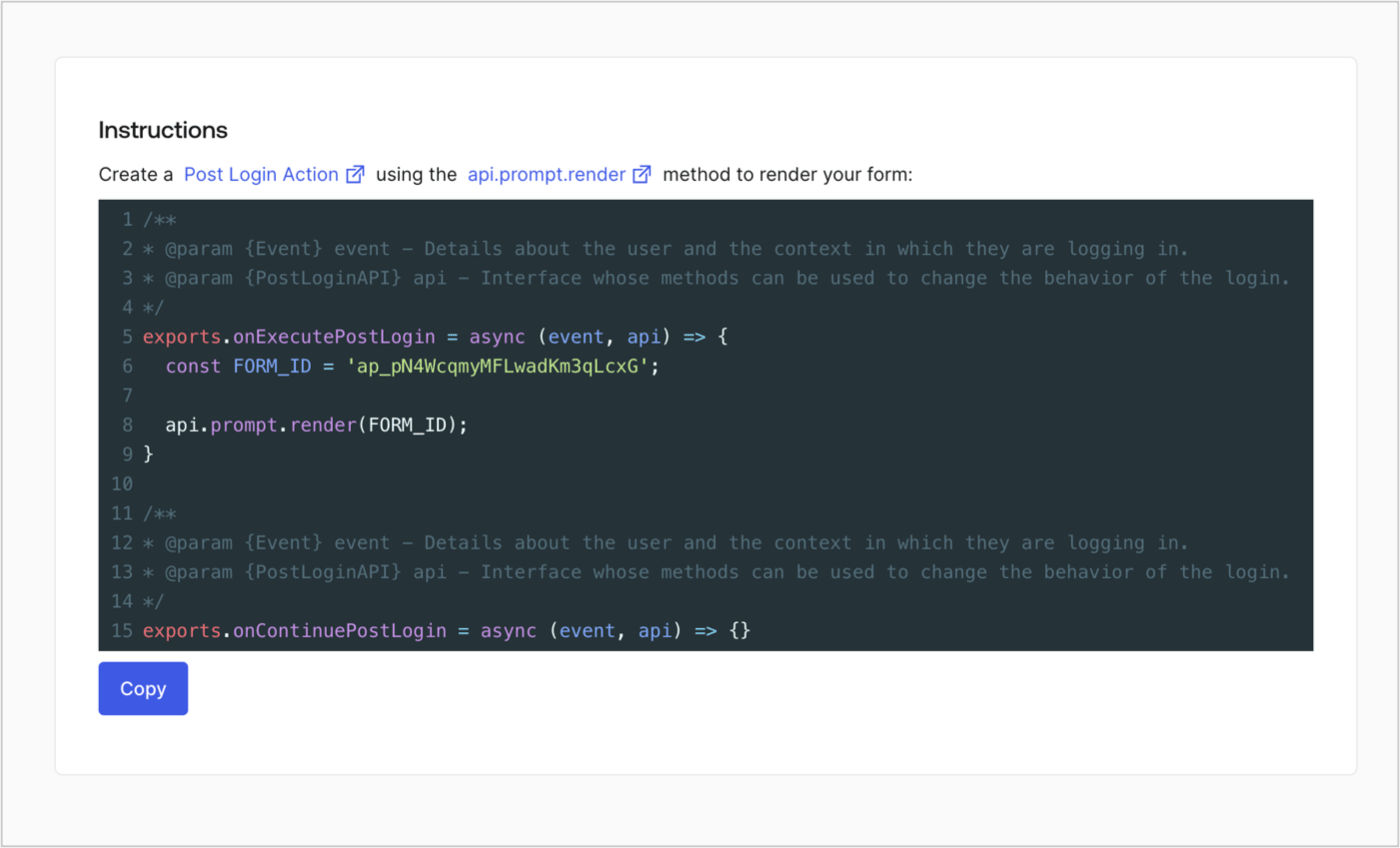
Retrieve your form render code to visually render the form with a custom Post Login Action by following these steps:

* From the Form editor, select **`<> Render`**.
* Select **Copy**.
<Frame>
  <img src="https://mintcdn.com/docs-staging-privilege-worker-scope-pinning/HcC8VsDq9B3Kkq6Y/docs/images/cdy7uua7fh8z/2EIUzc539sq9lwoTKbjoJv/496a864c0fc44a782c9cadca119dbfb0/embed.png?fit=max&auto=format&n=HcC8VsDq9B3Kkq6Y&q=85&s=7f1fb88b7df39686f771ebda37c122f1" alt="Dashboard > Actions > Forms > Form > Embed" data-og-width="1400" width="1400" data-og-height="848" height="848" data-path="docs/images/cdy7uua7fh8z/2EIUzc539sq9lwoTKbjoJv/496a864c0fc44a782c9cadca119dbfb0/embed.png" data-optimize="true" data-opv="3" srcset="https://mintcdn.com/docs-staging-privilege-worker-scope-pinning/HcC8VsDq9B3Kkq6Y/docs/images/cdy7uua7fh8z/2EIUzc539sq9lwoTKbjoJv/496a864c0fc44a782c9cadca119dbfb0/embed.png?w=280&fit=max&auto=format&n=HcC8VsDq9B3Kkq6Y&q=85&s=7f453286a06b3233deee89720b1e2b28 280w, https://mintcdn.com/docs-staging-privilege-worker-scope-pinning/HcC8VsDq9B3Kkq6Y/docs/images/cdy7uua7fh8z/2EIUzc539sq9lwoTKbjoJv/496a864c0fc44a782c9cadca119dbfb0/embed.png?w=560&fit=max&auto=format&n=HcC8VsDq9B3Kkq6Y&q=85&s=182eefa336a48c43e8029bb38cdd7ad9 560w, https://mintcdn.com/docs-staging-privilege-worker-scope-pinning/HcC8VsDq9B3Kkq6Y/docs/images/cdy7uua7fh8z/2EIUzc539sq9lwoTKbjoJv/496a864c0fc44a782c9cadca119dbfb0/embed.png?w=840&fit=max&auto=format&n=HcC8VsDq9B3Kkq6Y&q=85&s=893d1a1cc5f74d366cfb140f6008d5e4 840w, https://mintcdn.com/docs-staging-privilege-worker-scope-pinning/HcC8VsDq9B3Kkq6Y/docs/images/cdy7uua7fh8z/2EIUzc539sq9lwoTKbjoJv/496a864c0fc44a782c9cadca119dbfb0/embed.png?w=1100&fit=max&auto=format&n=HcC8VsDq9B3Kkq6Y&q=85&s=a2c526328a5a2763fa8bfc00ad34b2ca 1100w, https://mintcdn.com/docs-staging-privilege-worker-scope-pinning/HcC8VsDq9B3Kkq6Y/docs/images/cdy7uua7fh8z/2EIUzc539sq9lwoTKbjoJv/496a864c0fc44a782c9cadca119dbfb0/embed.png?w=1650&fit=max&auto=format&n=HcC8VsDq9B3Kkq6Y&q=85&s=17cb3a8c5a5675efd94f1c676e6a3c5a 1650w, https://mintcdn.com/docs-staging-privilege-worker-scope-pinning/HcC8VsDq9B3Kkq6Y/docs/images/cdy7uua7fh8z/2EIUzc539sq9lwoTKbjoJv/496a864c0fc44a782c9cadca119dbfb0/embed.png?w=2500&fit=max&auto=format&n=HcC8VsDq9B3Kkq6Y&q=85&s=4b8f8a9e316b8cdfea604616515dd1ef 2500w" />
</Frame>

## Create a Post Login Action

Create a post-login Action to render your form by following these steps:

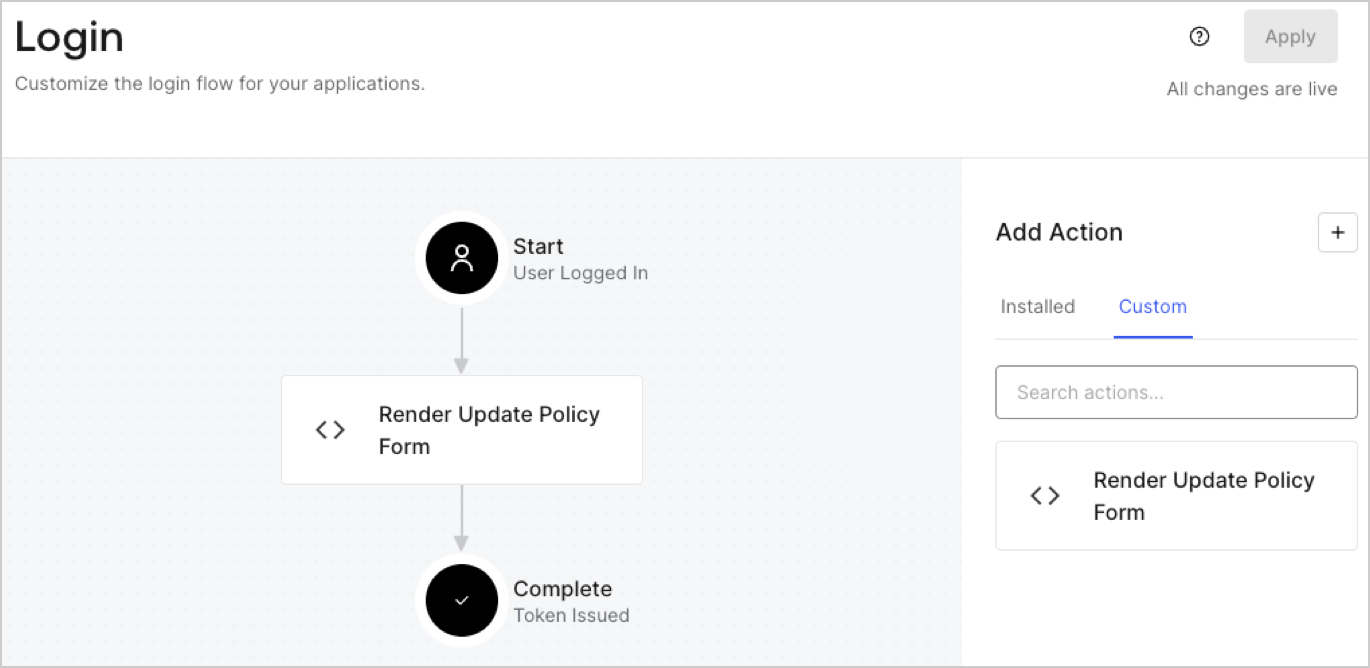
1. Navigate to **Auth0 Dashboard > Actions > Flows > Login.**
2. Select the **+** icon and Select **Build from scratch**:

   * **Name**: Enter `Render Update Policy Form`.
   * **Trigger**: Select `Login / Post Login`.
   * **Runtime**: Select the recommended version.
3. Select **Create**.

To configure the post-login Action:

1. Delete the existing code from the Code editor.
2. Paste the form render code into the Code editor.
3. Edit the code to define the conditional logic that will render the form.

   ```javascript lines theme={null}
   /**
   * @param {Event} event - Details about the user and the context in which they are logging in.
   * @param {PostLoginAPI} api - Interface whose methods can be used to change the behavior of the login.
   */
   exports.onExecutePostLogin = async (event, api) => {
     const FORM_ID = 'REPLACE_WITH_YOUR_FORM_ID';

     if (event.user.app_metadata.privacy_policies !== true) {
       api.prompt.render(FORM_ID);
     }
   }

   exports.onContinuePostLogin = async (event, api) => { }
   ```

   <Callout icon="file-lines" color="#0EA5E9" iconType="regular">
     The example code above will render the form when a user is missing the app metadata `privacy_policies` property.
   </Callout>
4. Select **Deploy.**
5. Drag and Drop the **Render Update Policy Form** Action to the **Login** flow.
   <Frame>
     <img src="https://mintcdn.com/docs-staging-privilege-worker-scope-pinning/DAR8CyuNRZbXiQmb/docs/images/cdy7uua7fh8z/5TOwDgevZsBqd7yZynUYWU/41ca909dc3007aed4f40ff794a05efa5/postlogin.png?fit=max&auto=format&n=DAR8CyuNRZbXiQmb&q=85&s=90a77a28febd1306824b47ec53e86b32" alt="Dashboard > Forms > Use Case > Render update policy form login action" data-og-width="1370" width="1370" data-og-height="668" height="668" data-path="docs/images/cdy7uua7fh8z/5TOwDgevZsBqd7yZynUYWU/41ca909dc3007aed4f40ff794a05efa5/postlogin.png" data-optimize="true" data-opv="3" srcset="https://mintcdn.com/docs-staging-privilege-worker-scope-pinning/DAR8CyuNRZbXiQmb/docs/images/cdy7uua7fh8z/5TOwDgevZsBqd7yZynUYWU/41ca909dc3007aed4f40ff794a05efa5/postlogin.png?w=280&fit=max&auto=format&n=DAR8CyuNRZbXiQmb&q=85&s=c3dccecea42dc7bfa09d8990e2de4f0c 280w, https://mintcdn.com/docs-staging-privilege-worker-scope-pinning/DAR8CyuNRZbXiQmb/docs/images/cdy7uua7fh8z/5TOwDgevZsBqd7yZynUYWU/41ca909dc3007aed4f40ff794a05efa5/postlogin.png?w=560&fit=max&auto=format&n=DAR8CyuNRZbXiQmb&q=85&s=09292e0c140c19b9d829190d2b27f7f2 560w, https://mintcdn.com/docs-staging-privilege-worker-scope-pinning/DAR8CyuNRZbXiQmb/docs/images/cdy7uua7fh8z/5TOwDgevZsBqd7yZynUYWU/41ca909dc3007aed4f40ff794a05efa5/postlogin.png?w=840&fit=max&auto=format&n=DAR8CyuNRZbXiQmb&q=85&s=f693e7c069288e1c6595988f97721d84 840w, https://mintcdn.com/docs-staging-privilege-worker-scope-pinning/DAR8CyuNRZbXiQmb/docs/images/cdy7uua7fh8z/5TOwDgevZsBqd7yZynUYWU/41ca909dc3007aed4f40ff794a05efa5/postlogin.png?w=1100&fit=max&auto=format&n=DAR8CyuNRZbXiQmb&q=85&s=c02961ff93e5009dd9f169b4eb479dfb 1100w, https://mintcdn.com/docs-staging-privilege-worker-scope-pinning/DAR8CyuNRZbXiQmb/docs/images/cdy7uua7fh8z/5TOwDgevZsBqd7yZynUYWU/41ca909dc3007aed4f40ff794a05efa5/postlogin.png?w=1650&fit=max&auto=format&n=DAR8CyuNRZbXiQmb&q=85&s=4a0cfe69ca686ee7f6a71c25b67de1ca 1650w, https://mintcdn.com/docs-staging-privilege-worker-scope-pinning/DAR8CyuNRZbXiQmb/docs/images/cdy7uua7fh8z/5TOwDgevZsBqd7yZynUYWU/41ca909dc3007aed4f40ff794a05efa5/postlogin.png?w=2500&fit=max&auto=format&n=DAR8CyuNRZbXiQmb&q=85&s=e430246aa6b53fb0395ef50b53e9d1e1 2500w" />
   </Frame>
6. Select **Apply.**

### Test implementation

Test the implementation by following these steps:

1. Log in with an existing user whose app`_metadata` attribute `privacy_policies` does not have a value.
2. The post-login Action in the Login flow will render the form and prompt for acceptance.
3. Select **Auth0 Dashboard > User Management > Users,** locate the user and verify that the `app_metadata` attribute `privacy_policies` contains a `true` value and a timestamp.
