> ## Documentation Index
> Fetch the complete documentation index at: https://docs-staging-privilege-worker-scope-pinning.mintlify.site/llms.txt
> Use this file to discover all available pages before exploring further.

> Learn how to configure a progressive profile form using Forms for Actions

# Use Cases: Configure a progressive profile form using Forms

<Card title="Before you start">
  1. Create a [Machine-to-Machine Application](/docs/get-started/auth0-overview/create-applications/machine-to-machine-apps) with the following scopes enabled:

  * `read:users`
  * `update:users`
  * `create:users`
  * `read:users_app_metadata`
  * `update:users_app_metadata`
  * `create:users_app_metadata`

  2. Add a [Vault connection](/docs/customize/forms/vault) using the M2M application credentials.
</Card>

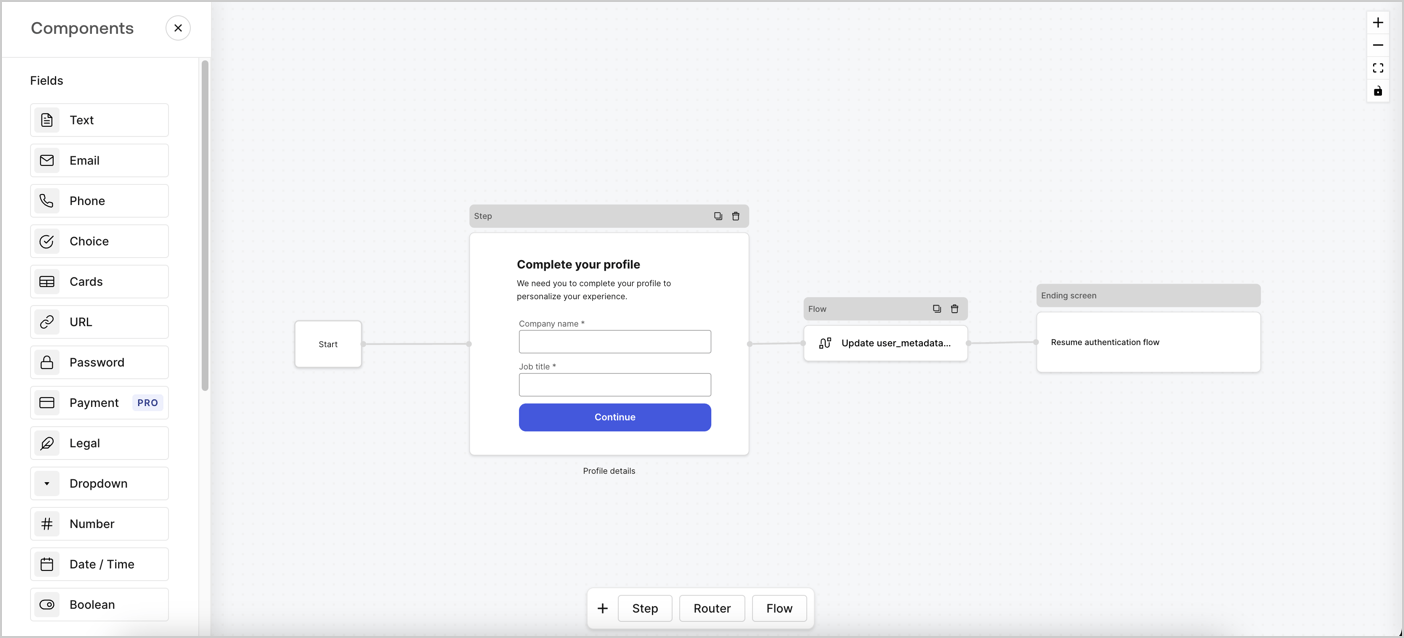
Forms for Actions allows you to create progressive profiling flows to decide when to prompt users to collect missing information, such as company name and job title, and store them as `user_metadata` attributes.
<Frame>
  <img src="https://mintcdn.com/docs-staging-privilege-worker-scope-pinning/paXT22-u22UcFFTC/docs/images/cdy7uua7fh8z/xUx9YmnHvnAqL19JvNtNP/60dae88f893d4ebe8e3523421e960596/Progressive-profle-overview.png?fit=max&auto=format&n=paXT22-u22UcFFTC&q=85&s=9ccc43eda7dcb6bc8c13d7c000f6a0f3" alt="Dashboard > Actions > Forms > Form" data-og-width="1404" width="1404" data-og-height="638" height="638" data-path="docs/images/cdy7uua7fh8z/xUx9YmnHvnAqL19JvNtNP/60dae88f893d4ebe8e3523421e960596/Progressive-profle-overview.png" data-optimize="true" data-opv="3" srcset="https://mintcdn.com/docs-staging-privilege-worker-scope-pinning/paXT22-u22UcFFTC/docs/images/cdy7uua7fh8z/xUx9YmnHvnAqL19JvNtNP/60dae88f893d4ebe8e3523421e960596/Progressive-profle-overview.png?w=280&fit=max&auto=format&n=paXT22-u22UcFFTC&q=85&s=b01d416bc21e3bd8937471ce75e0b0a0 280w, https://mintcdn.com/docs-staging-privilege-worker-scope-pinning/paXT22-u22UcFFTC/docs/images/cdy7uua7fh8z/xUx9YmnHvnAqL19JvNtNP/60dae88f893d4ebe8e3523421e960596/Progressive-profle-overview.png?w=560&fit=max&auto=format&n=paXT22-u22UcFFTC&q=85&s=c7c72ee25ef57cc93a24b65838eafa27 560w, https://mintcdn.com/docs-staging-privilege-worker-scope-pinning/paXT22-u22UcFFTC/docs/images/cdy7uua7fh8z/xUx9YmnHvnAqL19JvNtNP/60dae88f893d4ebe8e3523421e960596/Progressive-profle-overview.png?w=840&fit=max&auto=format&n=paXT22-u22UcFFTC&q=85&s=61df3b99fa49f453b73614cb6911ed6c 840w, https://mintcdn.com/docs-staging-privilege-worker-scope-pinning/paXT22-u22UcFFTC/docs/images/cdy7uua7fh8z/xUx9YmnHvnAqL19JvNtNP/60dae88f893d4ebe8e3523421e960596/Progressive-profle-overview.png?w=1100&fit=max&auto=format&n=paXT22-u22UcFFTC&q=85&s=880d65610d5e40c7dc42b3541fd034ce 1100w, https://mintcdn.com/docs-staging-privilege-worker-scope-pinning/paXT22-u22UcFFTC/docs/images/cdy7uua7fh8z/xUx9YmnHvnAqL19JvNtNP/60dae88f893d4ebe8e3523421e960596/Progressive-profle-overview.png?w=1650&fit=max&auto=format&n=paXT22-u22UcFFTC&q=85&s=a1e85d1c5f18fb6a7716f00e2584941b 1650w, https://mintcdn.com/docs-staging-privilege-worker-scope-pinning/paXT22-u22UcFFTC/docs/images/cdy7uua7fh8z/xUx9YmnHvnAqL19JvNtNP/60dae88f893d4ebe8e3523421e960596/Progressive-profle-overview.png?w=2500&fit=max&auto=format&n=paXT22-u22UcFFTC&q=85&s=69c20bf54424a0776633b64db8df7234 2500w" />
</Frame>

The sections below outline how you can create a progressive profile form using nodes and flows, along with steps for adding your form to a [Post Login Action](/docs/customize/actions/explore-triggers/signup-and-login-triggers/login-trigger).

## Create a form from scratch

Follow these steps to create a form to gather information:

1. Open the Form editor by selecting **Auth0 Dashboard > Actions > Forms.**
2. Select **Create Form** > **Start from scratch**.

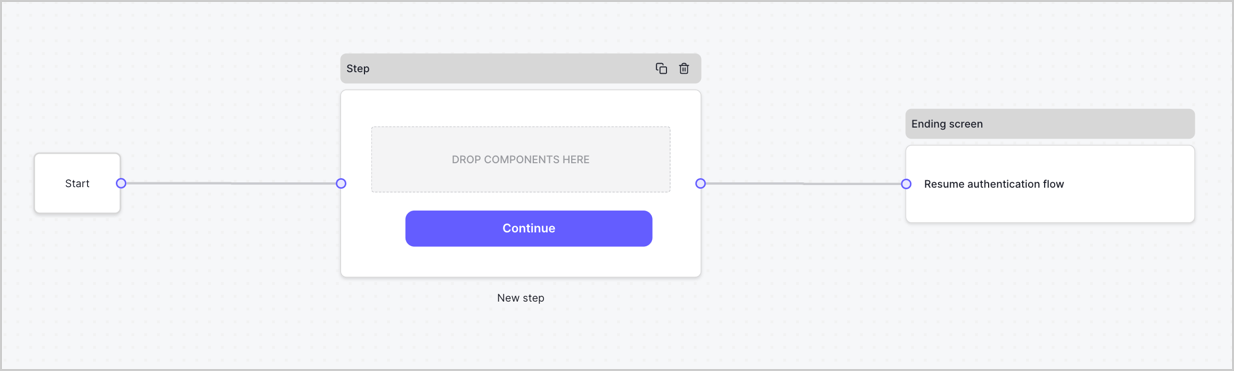
By default, a new form contains a Start node, a Step node, and an Ending screen node.
<Frame>
  <img src="https://mintcdn.com/docs-staging-privilege-worker-scope-pinning/Hmq7ldyOot2wV44X/docs/images/cdy7uua7fh8z/2TZ9jSjgEcARFpULI6hz4R/a4319a1bd482f2ee5cc23100fdb2f42c/New-form-Forms-for-action-use-case.png?fit=max&auto=format&n=Hmq7ldyOot2wV44X&q=85&s=e75c5a4f2361947f3b7016121ac3057e" alt="Dashboard > Forms > Use Cases > Form" data-og-width="1234" width="1234" data-og-height="371" height="371" data-path="docs/images/cdy7uua7fh8z/2TZ9jSjgEcARFpULI6hz4R/a4319a1bd482f2ee5cc23100fdb2f42c/New-form-Forms-for-action-use-case.png" data-optimize="true" data-opv="3" srcset="https://mintcdn.com/docs-staging-privilege-worker-scope-pinning/Hmq7ldyOot2wV44X/docs/images/cdy7uua7fh8z/2TZ9jSjgEcARFpULI6hz4R/a4319a1bd482f2ee5cc23100fdb2f42c/New-form-Forms-for-action-use-case.png?w=280&fit=max&auto=format&n=Hmq7ldyOot2wV44X&q=85&s=2c65799a4ff4cfd6d56e470dd890299a 280w, https://mintcdn.com/docs-staging-privilege-worker-scope-pinning/Hmq7ldyOot2wV44X/docs/images/cdy7uua7fh8z/2TZ9jSjgEcARFpULI6hz4R/a4319a1bd482f2ee5cc23100fdb2f42c/New-form-Forms-for-action-use-case.png?w=560&fit=max&auto=format&n=Hmq7ldyOot2wV44X&q=85&s=7e38c792f6a09f38129e8eb07bfe8b0e 560w, https://mintcdn.com/docs-staging-privilege-worker-scope-pinning/Hmq7ldyOot2wV44X/docs/images/cdy7uua7fh8z/2TZ9jSjgEcARFpULI6hz4R/a4319a1bd482f2ee5cc23100fdb2f42c/New-form-Forms-for-action-use-case.png?w=840&fit=max&auto=format&n=Hmq7ldyOot2wV44X&q=85&s=a4a4385fabdd4d8d01d57c2c39bb5d8e 840w, https://mintcdn.com/docs-staging-privilege-worker-scope-pinning/Hmq7ldyOot2wV44X/docs/images/cdy7uua7fh8z/2TZ9jSjgEcARFpULI6hz4R/a4319a1bd482f2ee5cc23100fdb2f42c/New-form-Forms-for-action-use-case.png?w=1100&fit=max&auto=format&n=Hmq7ldyOot2wV44X&q=85&s=9e871bbd0d5f7bf3846f2f53474c6ea7 1100w, https://mintcdn.com/docs-staging-privilege-worker-scope-pinning/Hmq7ldyOot2wV44X/docs/images/cdy7uua7fh8z/2TZ9jSjgEcARFpULI6hz4R/a4319a1bd482f2ee5cc23100fdb2f42c/New-form-Forms-for-action-use-case.png?w=1650&fit=max&auto=format&n=Hmq7ldyOot2wV44X&q=85&s=486a47b494db89fd6006d73314614cf5 1650w, https://mintcdn.com/docs-staging-privilege-worker-scope-pinning/Hmq7ldyOot2wV44X/docs/images/cdy7uua7fh8z/2TZ9jSjgEcARFpULI6hz4R/a4319a1bd482f2ee5cc23100fdb2f42c/New-form-Forms-for-action-use-case.png?w=2500&fit=max&auto=format&n=Hmq7ldyOot2wV44X&q=85&s=920b6182804ae3a83e6f1d3397644b64 2500w" />
</Frame>

### Configure the Step node

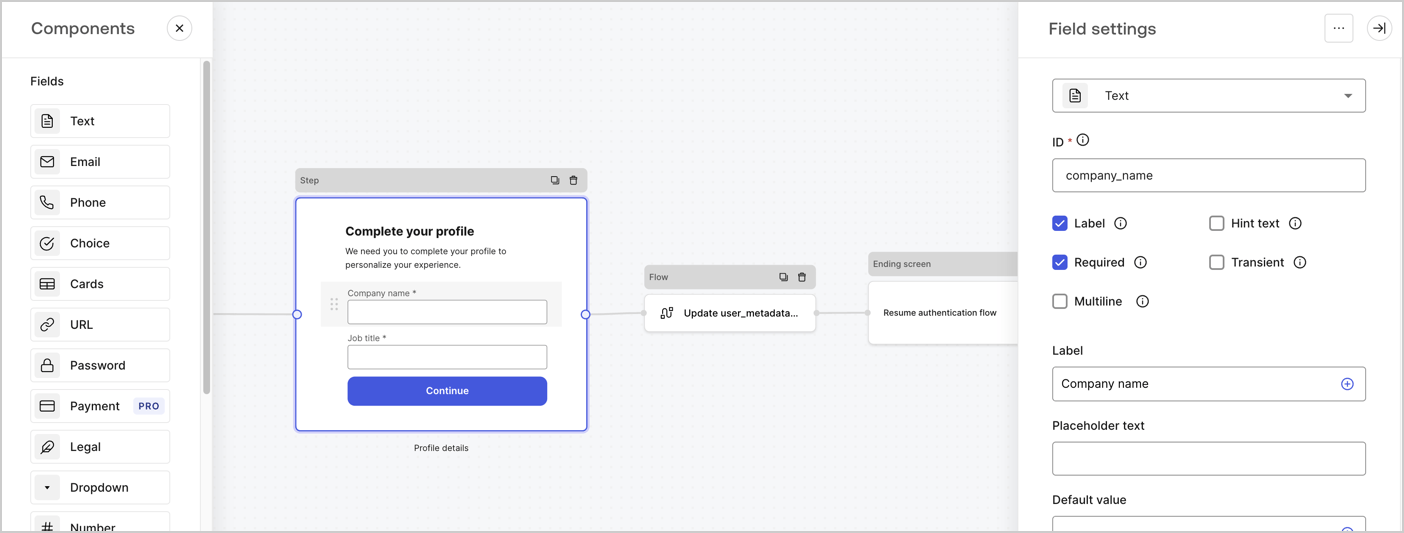
The Step node is the graphical interface visible to users. Add [Fields](/docs/customize/forms/nodes-and-components) to the Step node to collect the user's company name and job title values by following these steps:

1. Drag a **Rich text** field from the **Components menu** into the **Step** node.

   * **Rich text**: Enter a custom message.

     * **Example**: `Complete your profile! We need you to complete your profile to personalize your experience.`
   * Select **Save**.
2. Drag a **Text** field into the **Step** node.

   * **ID**: Enter `company_name`.
   * **Label**: Enable the checkbox.
   * **Label**: Enter `Company name`.
   * **Required**: Enable the checkbox.
   * Select **Save**.
3. Drag a **Text** field into the **Step** node.

   1. **ID**: Enter `job_title`.
   2. **Label**: Enter `Job title`.
   3. **Label**: Enable the checkbox.
   4. **Required**: Enable the checkbox.
   5. Select **Save**.
4. Select **Publish** to save.
<Frame>
  <img src="https://mintcdn.com/docs-staging-privilege-worker-scope-pinning/CFxn1qbDITEzU78s/docs/images/cdy7uua7fh8z/6H1lRzwKyYioQyQJ9MtIoM/aa248e92fc028a68a5b92ff361a11644/progressive-profile-step.png?fit=max&auto=format&n=CFxn1qbDITEzU78s&q=85&s=d780e30551f75de1bc7624fa9baee4e6" alt="Dashboard > Actions > Forms > Form > Step node" data-og-width="1404" width="1404" data-og-height="533" height="533" data-path="docs/images/cdy7uua7fh8z/6H1lRzwKyYioQyQJ9MtIoM/aa248e92fc028a68a5b92ff361a11644/progressive-profile-step.png" data-optimize="true" data-opv="3" srcset="https://mintcdn.com/docs-staging-privilege-worker-scope-pinning/CFxn1qbDITEzU78s/docs/images/cdy7uua7fh8z/6H1lRzwKyYioQyQJ9MtIoM/aa248e92fc028a68a5b92ff361a11644/progressive-profile-step.png?w=280&fit=max&auto=format&n=CFxn1qbDITEzU78s&q=85&s=e84fc5663aeb786a2c14d40b79fff857 280w, https://mintcdn.com/docs-staging-privilege-worker-scope-pinning/CFxn1qbDITEzU78s/docs/images/cdy7uua7fh8z/6H1lRzwKyYioQyQJ9MtIoM/aa248e92fc028a68a5b92ff361a11644/progressive-profile-step.png?w=560&fit=max&auto=format&n=CFxn1qbDITEzU78s&q=85&s=d4e4115e1c63bbfb3bc79d18d85a3116 560w, https://mintcdn.com/docs-staging-privilege-worker-scope-pinning/CFxn1qbDITEzU78s/docs/images/cdy7uua7fh8z/6H1lRzwKyYioQyQJ9MtIoM/aa248e92fc028a68a5b92ff361a11644/progressive-profile-step.png?w=840&fit=max&auto=format&n=CFxn1qbDITEzU78s&q=85&s=bfda38b6d13429e88252b5d7f2f1cf94 840w, https://mintcdn.com/docs-staging-privilege-worker-scope-pinning/CFxn1qbDITEzU78s/docs/images/cdy7uua7fh8z/6H1lRzwKyYioQyQJ9MtIoM/aa248e92fc028a68a5b92ff361a11644/progressive-profile-step.png?w=1100&fit=max&auto=format&n=CFxn1qbDITEzU78s&q=85&s=4b7fc889cf2f379e8ecda4bb817be48f 1100w, https://mintcdn.com/docs-staging-privilege-worker-scope-pinning/CFxn1qbDITEzU78s/docs/images/cdy7uua7fh8z/6H1lRzwKyYioQyQJ9MtIoM/aa248e92fc028a68a5b92ff361a11644/progressive-profile-step.png?w=1650&fit=max&auto=format&n=CFxn1qbDITEzU78s&q=85&s=1ebd71630eba79fad6da9cd352718c89 1650w, https://mintcdn.com/docs-staging-privilege-worker-scope-pinning/CFxn1qbDITEzU78s/docs/images/cdy7uua7fh8z/6H1lRzwKyYioQyQJ9MtIoM/aa248e92fc028a68a5b92ff361a11644/progressive-profile-step.png?w=2500&fit=max&auto=format&n=CFxn1qbDITEzU78s&q=85&s=2ac52b8544edf2fe90046f55e7036303 2500w" />
</Frame>

### Configure the flow node

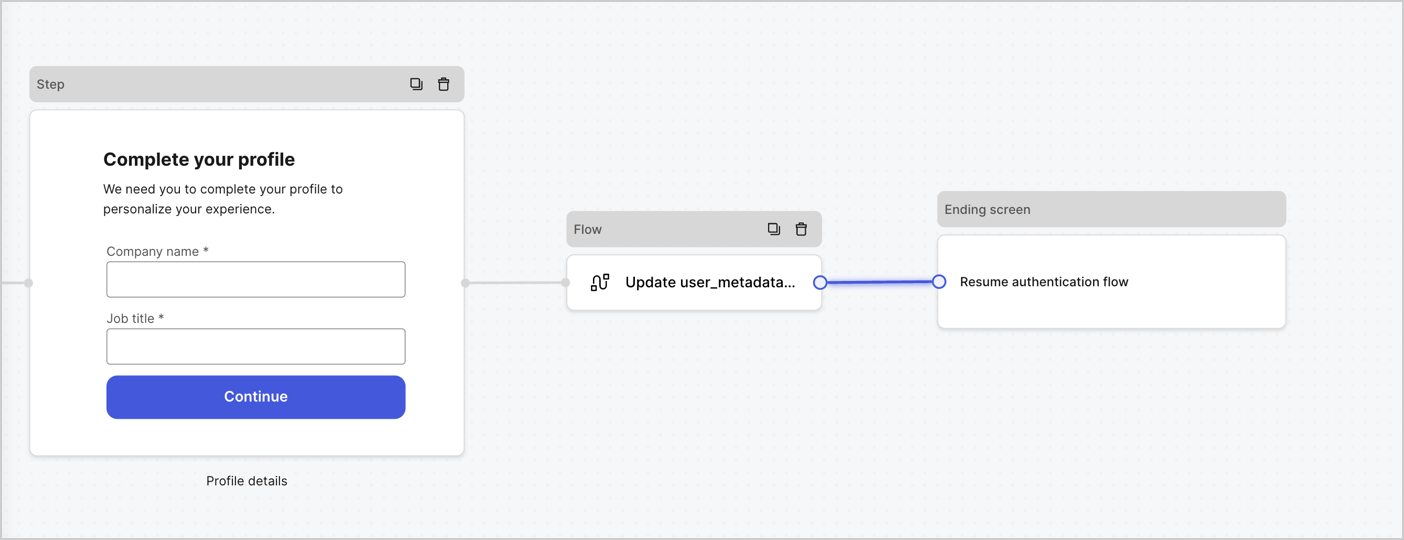
Add a **Flow** node after the **Step** node to update the `user_metadata` and resume the authentication flow by following these steps:

1. Select **Flow** from the bottom of the Form editor.
2. Remove the existing link between the **Step** and **Ending Screen** nodes.
3. Select the new **Flow** > **Click to add a flow** > **Create a new flow.**

   * Enter `Update user_metadata` in the **Name** field.
   * Select **Create**.
   * Select **Save**.
4. Link the **Flow** node to the **Step** and **Ending Screen** nodes as pictured below.
5. Select **Publish** to save.
<Frame>
  <img src="https://mintcdn.com/docs-staging-privilege-worker-scope-pinning/CAaV660U0wFdIcJT/docs/images/cdy7uua7fh8z/5C91DaWn4LGtJT9BF87ssu/095171d0c452a287c44bfde12fd6d13f/link-nodes.png?fit=max&auto=format&n=CAaV660U0wFdIcJT&q=85&s=5f2b74a26a497fc1e7a750b808a87cc7" alt="Dashboard > Actions > Forms > Form" data-og-width="1404" width="1404" data-og-height="540" height="540" data-path="docs/images/cdy7uua7fh8z/5C91DaWn4LGtJT9BF87ssu/095171d0c452a287c44bfde12fd6d13f/link-nodes.png" data-optimize="true" data-opv="3" srcset="https://mintcdn.com/docs-staging-privilege-worker-scope-pinning/CAaV660U0wFdIcJT/docs/images/cdy7uua7fh8z/5C91DaWn4LGtJT9BF87ssu/095171d0c452a287c44bfde12fd6d13f/link-nodes.png?w=280&fit=max&auto=format&n=CAaV660U0wFdIcJT&q=85&s=f627ca20b5e497cc1befce2513f72228 280w, https://mintcdn.com/docs-staging-privilege-worker-scope-pinning/CAaV660U0wFdIcJT/docs/images/cdy7uua7fh8z/5C91DaWn4LGtJT9BF87ssu/095171d0c452a287c44bfde12fd6d13f/link-nodes.png?w=560&fit=max&auto=format&n=CAaV660U0wFdIcJT&q=85&s=00201554b0255ea6bfc1c925a4fa5a6c 560w, https://mintcdn.com/docs-staging-privilege-worker-scope-pinning/CAaV660U0wFdIcJT/docs/images/cdy7uua7fh8z/5C91DaWn4LGtJT9BF87ssu/095171d0c452a287c44bfde12fd6d13f/link-nodes.png?w=840&fit=max&auto=format&n=CAaV660U0wFdIcJT&q=85&s=7d2c1bf1c575abdbd6b7f0885ddea7a0 840w, https://mintcdn.com/docs-staging-privilege-worker-scope-pinning/CAaV660U0wFdIcJT/docs/images/cdy7uua7fh8z/5C91DaWn4LGtJT9BF87ssu/095171d0c452a287c44bfde12fd6d13f/link-nodes.png?w=1100&fit=max&auto=format&n=CAaV660U0wFdIcJT&q=85&s=bc87753c3352d8e0bf74075e8f00b607 1100w, https://mintcdn.com/docs-staging-privilege-worker-scope-pinning/CAaV660U0wFdIcJT/docs/images/cdy7uua7fh8z/5C91DaWn4LGtJT9BF87ssu/095171d0c452a287c44bfde12fd6d13f/link-nodes.png?w=1650&fit=max&auto=format&n=CAaV660U0wFdIcJT&q=85&s=43bf5b5bf93640d8395255e9cd2587d1 1650w, https://mintcdn.com/docs-staging-privilege-worker-scope-pinning/CAaV660U0wFdIcJT/docs/images/cdy7uua7fh8z/5C91DaWn4LGtJT9BF87ssu/095171d0c452a287c44bfde12fd6d13f/link-nodes.png?w=2500&fit=max&auto=format&n=CAaV660U0wFdIcJT&q=85&s=2f3db22bdf438ec8dfaff19472dbfb88 2500w" />
</Frame>

Add an Auth0 Update user action to the flow by following these steps:

1. Select the **Update user\_metadata** flow, then select the **Edit Flow** to open the Flow editor in a new tab.
2. Below the **Start** action, select the **+** icon to add an **Update user** action. Complete the fields below, then select **Save** to continue.

   * **Connection**: Select from the dropdown the Vault connection to your M2M application.

   * **User ID**: Enter `{{context.user.user_id}}`.

   * **Body**: Copy and paste the following code to update the user\_metadata with `job_title` and `company_name` properties.

     ```json lines theme={null}
     {
        "user_metadata": {
           "job_title": "{{fields.job_title}}",
           "company_name": "{{fields.company_name}}"
        }
     }
     ```

   * Select **Save**.
3. Select **Publish** to save.

<Frame>
  <img src="https://mintcdn.com/docs-staging-privilege-worker-scope-pinning/DAR8CyuNRZbXiQmb/docs/images/cdy7uua7fh8z/65Jx4W5oIZJyyvA8z4HqIx/0661b1a8ca6361c54fc4fef07ba59f0b/update-user.png?fit=max&auto=format&n=DAR8CyuNRZbXiQmb&q=85&s=0432c4860fc791cf87410dd4ee961413" alt="Dashboard > Actions > Forms > Flows" data-og-width="1404" width="1404" data-og-height="244" height="244" data-path="docs/images/cdy7uua7fh8z/65Jx4W5oIZJyyvA8z4HqIx/0661b1a8ca6361c54fc4fef07ba59f0b/update-user.png" data-optimize="true" data-opv="3" srcset="https://mintcdn.com/docs-staging-privilege-worker-scope-pinning/DAR8CyuNRZbXiQmb/docs/images/cdy7uua7fh8z/65Jx4W5oIZJyyvA8z4HqIx/0661b1a8ca6361c54fc4fef07ba59f0b/update-user.png?w=280&fit=max&auto=format&n=DAR8CyuNRZbXiQmb&q=85&s=357912c1ac8d45df16b0b6a304e4d1b3 280w, https://mintcdn.com/docs-staging-privilege-worker-scope-pinning/DAR8CyuNRZbXiQmb/docs/images/cdy7uua7fh8z/65Jx4W5oIZJyyvA8z4HqIx/0661b1a8ca6361c54fc4fef07ba59f0b/update-user.png?w=560&fit=max&auto=format&n=DAR8CyuNRZbXiQmb&q=85&s=edb3312bfdca2d5abe00283c4acedb28 560w, https://mintcdn.com/docs-staging-privilege-worker-scope-pinning/DAR8CyuNRZbXiQmb/docs/images/cdy7uua7fh8z/65Jx4W5oIZJyyvA8z4HqIx/0661b1a8ca6361c54fc4fef07ba59f0b/update-user.png?w=840&fit=max&auto=format&n=DAR8CyuNRZbXiQmb&q=85&s=d71a5ce1936b6d20635af9da4f76609c 840w, https://mintcdn.com/docs-staging-privilege-worker-scope-pinning/DAR8CyuNRZbXiQmb/docs/images/cdy7uua7fh8z/65Jx4W5oIZJyyvA8z4HqIx/0661b1a8ca6361c54fc4fef07ba59f0b/update-user.png?w=1100&fit=max&auto=format&n=DAR8CyuNRZbXiQmb&q=85&s=8d11c210bcf9fe7cbdac6a49ecdf56f7 1100w, https://mintcdn.com/docs-staging-privilege-worker-scope-pinning/DAR8CyuNRZbXiQmb/docs/images/cdy7uua7fh8z/65Jx4W5oIZJyyvA8z4HqIx/0661b1a8ca6361c54fc4fef07ba59f0b/update-user.png?w=1650&fit=max&auto=format&n=DAR8CyuNRZbXiQmb&q=85&s=bf590cf72ca56d1dd31d5ad09d171bd3 1650w, https://mintcdn.com/docs-staging-privilege-worker-scope-pinning/DAR8CyuNRZbXiQmb/docs/images/cdy7uua7fh8z/65Jx4W5oIZJyyvA8z4HqIx/0661b1a8ca6361c54fc4fef07ba59f0b/update-user.png?w=2500&fit=max&auto=format&n=DAR8CyuNRZbXiQmb&q=85&s=8f7d9ff7b88410ce3f35f2c4b59f435c 2500w" />
</Frame>

### Retrieve the form render code

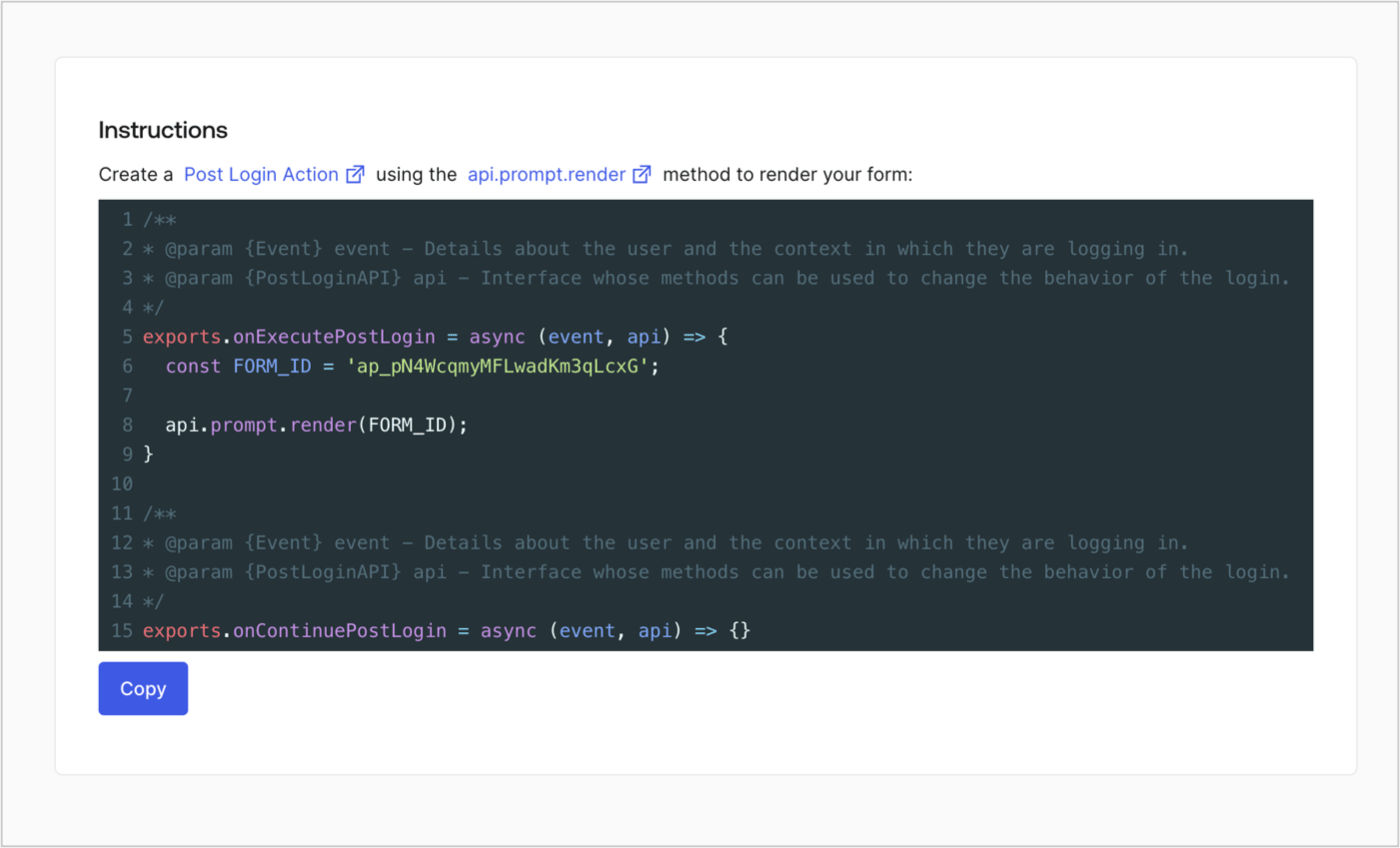
Retrieve the form render code to visually render the form with a custom Post Login Action by following these steps:

* From the Form editor, select **`<> Render`**.
* Select **Copy**.
<Frame>
  <img src="https://mintcdn.com/docs-staging-privilege-worker-scope-pinning/HcC8VsDq9B3Kkq6Y/docs/images/cdy7uua7fh8z/2EIUzc539sq9lwoTKbjoJv/496a864c0fc44a782c9cadca119dbfb0/embed.png?fit=max&auto=format&n=HcC8VsDq9B3Kkq6Y&q=85&s=7f1fb88b7df39686f771ebda37c122f1" alt="Dashboard > Actions > Forms > Form > Embed" data-og-width="1400" width="1400" data-og-height="848" height="848" data-path="docs/images/cdy7uua7fh8z/2EIUzc539sq9lwoTKbjoJv/496a864c0fc44a782c9cadca119dbfb0/embed.png" data-optimize="true" data-opv="3" srcset="https://mintcdn.com/docs-staging-privilege-worker-scope-pinning/HcC8VsDq9B3Kkq6Y/docs/images/cdy7uua7fh8z/2EIUzc539sq9lwoTKbjoJv/496a864c0fc44a782c9cadca119dbfb0/embed.png?w=280&fit=max&auto=format&n=HcC8VsDq9B3Kkq6Y&q=85&s=7f453286a06b3233deee89720b1e2b28 280w, https://mintcdn.com/docs-staging-privilege-worker-scope-pinning/HcC8VsDq9B3Kkq6Y/docs/images/cdy7uua7fh8z/2EIUzc539sq9lwoTKbjoJv/496a864c0fc44a782c9cadca119dbfb0/embed.png?w=560&fit=max&auto=format&n=HcC8VsDq9B3Kkq6Y&q=85&s=182eefa336a48c43e8029bb38cdd7ad9 560w, https://mintcdn.com/docs-staging-privilege-worker-scope-pinning/HcC8VsDq9B3Kkq6Y/docs/images/cdy7uua7fh8z/2EIUzc539sq9lwoTKbjoJv/496a864c0fc44a782c9cadca119dbfb0/embed.png?w=840&fit=max&auto=format&n=HcC8VsDq9B3Kkq6Y&q=85&s=893d1a1cc5f74d366cfb140f6008d5e4 840w, https://mintcdn.com/docs-staging-privilege-worker-scope-pinning/HcC8VsDq9B3Kkq6Y/docs/images/cdy7uua7fh8z/2EIUzc539sq9lwoTKbjoJv/496a864c0fc44a782c9cadca119dbfb0/embed.png?w=1100&fit=max&auto=format&n=HcC8VsDq9B3Kkq6Y&q=85&s=a2c526328a5a2763fa8bfc00ad34b2ca 1100w, https://mintcdn.com/docs-staging-privilege-worker-scope-pinning/HcC8VsDq9B3Kkq6Y/docs/images/cdy7uua7fh8z/2EIUzc539sq9lwoTKbjoJv/496a864c0fc44a782c9cadca119dbfb0/embed.png?w=1650&fit=max&auto=format&n=HcC8VsDq9B3Kkq6Y&q=85&s=17cb3a8c5a5675efd94f1c676e6a3c5a 1650w, https://mintcdn.com/docs-staging-privilege-worker-scope-pinning/HcC8VsDq9B3Kkq6Y/docs/images/cdy7uua7fh8z/2EIUzc539sq9lwoTKbjoJv/496a864c0fc44a782c9cadca119dbfb0/embed.png?w=2500&fit=max&auto=format&n=HcC8VsDq9B3Kkq6Y&q=85&s=4b8f8a9e316b8cdfea604616515dd1ef 2500w" />
</Frame>

## Create a Post Login Action

Create a post-login Action to render your form by following these steps:

1. Navigate to **Auth0 Dashboard > Actions > Flows > Login.**
2. Select the **+** icon and select **Build from scratch**:

   * **Name**: Enter `Render Progressive Profile Form`.
   * **Trigger**: Select `Login / Post Login`.
   * **Runtime**: Select the recommended version.
3. Select **Create**.

To configure the post-login Action:

1. Delete the existing code from the Code editor.
2. Paste the form embed code into the Code editor.
3. Edit the code to define the conditional logic that will render the form.

   ```javascript lines theme={null}
   /**
   * @param {Event} event - Details about the user and the context in which they are logging in.
   * @param {PostLoginAPI} api - Interface whose methods can be used to change the behavior of the login.
   */
   exports.onExecutePostLogin = async (event, api) => {
     const FORM_ID = 'REPLACE_WITH_YOUR_FORM_ID';

     if (
       event.stats.logins_count > 2 &&
       !event.user.user_metadata.company_name &&
       !event.user.user_metadata.job_title
     ) {
       api.prompt.render(FORM_ID);
     }
   }

   exports.onContinuePostLogin = async (event, api) => { }
   ```

   <Callout icon="file-lines" color="#0EA5E9" iconType="regular">
     The example code above will render the form when a user has a login count > 2 and is missing the user metadata company\_name and job\_title properties.
   </Callout>
4. Select **Deploy.**
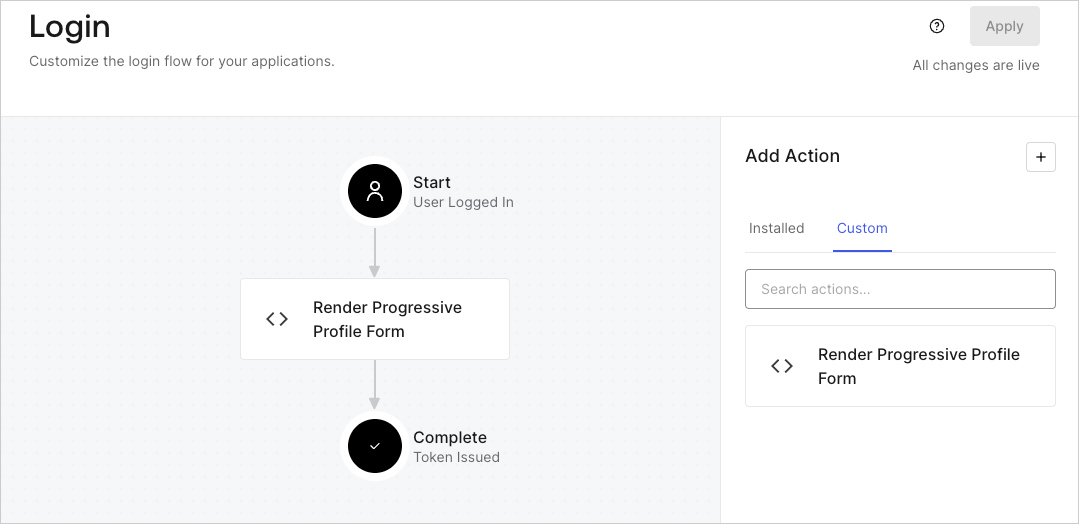
5. Drag and Drop the **Render Progressive Profile Form** Action to the **Login** flow.
   <Frame>
     <img src="https://mintcdn.com/docs-staging-privilege-worker-scope-pinning/vWB2NGnXGpC01Thw/docs/images/cdy7uua7fh8z/1QjjZdpTqTxx012UDN4xk9/99fba5ef4068a5688f1762eea7f42976/renderprogessiveprofile.png?fit=max&auto=format&n=vWB2NGnXGpC01Thw&q=85&s=04cd4b3671b03ebf555a2831d820c397" alt="Dashboard > Forms > Use Cases Progressive Profile Login Action" data-og-width="1079" width="1079" data-og-height="524" height="524" data-path="docs/images/cdy7uua7fh8z/1QjjZdpTqTxx012UDN4xk9/99fba5ef4068a5688f1762eea7f42976/renderprogessiveprofile.png" data-optimize="true" data-opv="3" srcset="https://mintcdn.com/docs-staging-privilege-worker-scope-pinning/vWB2NGnXGpC01Thw/docs/images/cdy7uua7fh8z/1QjjZdpTqTxx012UDN4xk9/99fba5ef4068a5688f1762eea7f42976/renderprogessiveprofile.png?w=280&fit=max&auto=format&n=vWB2NGnXGpC01Thw&q=85&s=e0a7bb28daef1419de6e6344b9e01a40 280w, https://mintcdn.com/docs-staging-privilege-worker-scope-pinning/vWB2NGnXGpC01Thw/docs/images/cdy7uua7fh8z/1QjjZdpTqTxx012UDN4xk9/99fba5ef4068a5688f1762eea7f42976/renderprogessiveprofile.png?w=560&fit=max&auto=format&n=vWB2NGnXGpC01Thw&q=85&s=702b6ab7ed8b7f54e283a21f1ff64092 560w, https://mintcdn.com/docs-staging-privilege-worker-scope-pinning/vWB2NGnXGpC01Thw/docs/images/cdy7uua7fh8z/1QjjZdpTqTxx012UDN4xk9/99fba5ef4068a5688f1762eea7f42976/renderprogessiveprofile.png?w=840&fit=max&auto=format&n=vWB2NGnXGpC01Thw&q=85&s=262fb4e3fa232a8d11956308e859e788 840w, https://mintcdn.com/docs-staging-privilege-worker-scope-pinning/vWB2NGnXGpC01Thw/docs/images/cdy7uua7fh8z/1QjjZdpTqTxx012UDN4xk9/99fba5ef4068a5688f1762eea7f42976/renderprogessiveprofile.png?w=1100&fit=max&auto=format&n=vWB2NGnXGpC01Thw&q=85&s=63910505e5083bc5f452b2bc309cf347 1100w, https://mintcdn.com/docs-staging-privilege-worker-scope-pinning/vWB2NGnXGpC01Thw/docs/images/cdy7uua7fh8z/1QjjZdpTqTxx012UDN4xk9/99fba5ef4068a5688f1762eea7f42976/renderprogessiveprofile.png?w=1650&fit=max&auto=format&n=vWB2NGnXGpC01Thw&q=85&s=7539aa4519803e1a18e08cc39e2c3658 1650w, https://mintcdn.com/docs-staging-privilege-worker-scope-pinning/vWB2NGnXGpC01Thw/docs/images/cdy7uua7fh8z/1QjjZdpTqTxx012UDN4xk9/99fba5ef4068a5688f1762eea7f42976/renderprogessiveprofile.png?w=2500&fit=max&auto=format&n=vWB2NGnXGpC01Thw&q=85&s=cab18910d29ed9d8fb16977c3ea89e6a 2500w" />
   </Frame>
6. Select **Apply**.

### Test implementation

Test the implementation by following these steps:

1. Log in with an existing user whose login count is greater than 2 and their `user_metadata` attributes `company_name` and `job_title` have no values.
2. The post-login action in the Login flow will render the form and prompt for the information.
3. Select **Auth0 Dashboard > User Management > Users,** locate the user and verify that the `user_metadata` attributes `company_name` and `job_title` contain information.
